Tour of the app
HushChat gives you a small, fixed set of destinations. Everything else — a conversation, a group's details, an admin panel — opens inside one of them. Learn the four and you can find anything.
The four destinations
| Destination | What it holds |
|---|---|
| Conversations | Every chat you are part of, one-to-one and group |
| Calls | Your call history |
| Profile | Your name and photo, blocked contacts, and account actions |
| Admin | Workspace administration — workspace administrators only |
On the web the four sit in a narrow icon rail down the left edge of the window. On iOS and Android they are a bar along the bottom of the screen, each icon under its name. The rail shows no names until you hover an icon, at which point its name appears beside it.
The Conversations icon carries a green badge with the number of unread messages waiting for you
across the whole workspace. Above ninety-nine it reads 99+.
Conversations
The conversation list is headed by your workspace's name, and under that a search box prompting you with
Search... and a row of filters:
| Filter | Shows |
|---|---|
| All | Everything |
| Favorites | Chats you have marked as favourites |
| Groups | Group chats only |
| Muted | Chats you have muted |
On the web the screen is split: the list stays on the left and the chat you pick opens in the pane on the right. Until you pick one, that pane reads No chat selected — "Choose a conversation to start chatting". On a phone the list fills the screen and tapping a chat replaces it, so you come back with the back control.
There is a menu at the top of the list for the things that are not a conversation.
| Platform | How to open it | What is in it |
|---|---|---|
| Web | The kebab (⋮) button beside the workspace name | New Group, Mentioned messages, Mute sounds / Unmute sounds, Logout |
| iOS and Android | The ⋮ button beside the workspace name, which opens a sheet titled Actions | New group, Mentioned messages, Contacts, Invite, and — for administrators — Groups |
Switch workspace joins the Actions sheet only when your account belongs to more than one workspace. See Switching workspaces.
Calls
Calls is headed Calls and lists the calls you have placed, answered and missed.
On the web the list again takes the left side, and the right side reads Start a call — "Select a call from the list or place a new one." — until you choose one. Calls themselves are started from inside a conversation, not from this screen.
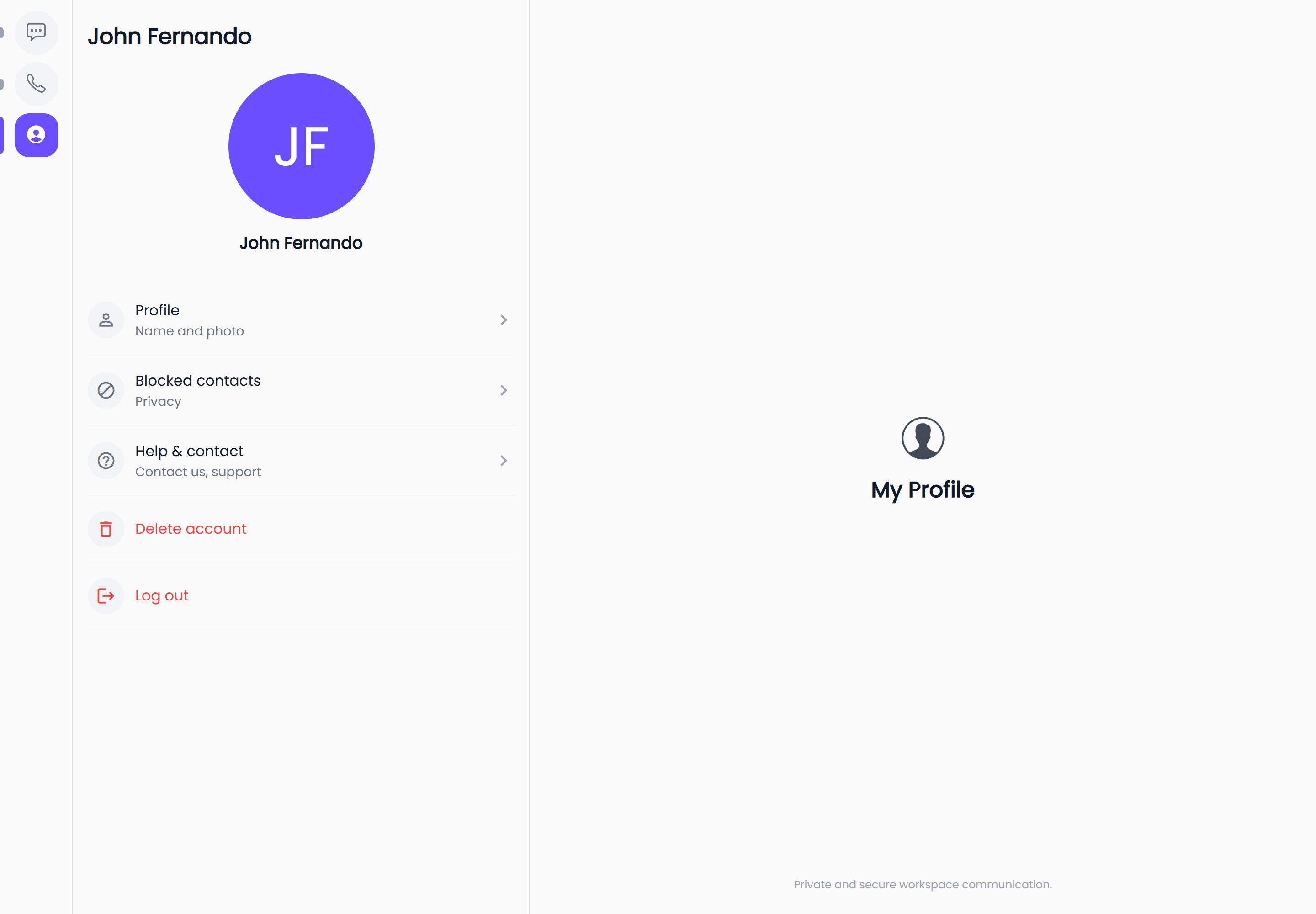
Profile
Profile opens on your name and photo, followed by a short list of rows:
| Row | What it is for |
|---|---|
| Profile | Name and photo |
| Blocked contacts | Privacy |
| Change workspace | Switch to another workspace |
| Help & contact | Contact us, support |
| Delete account | Permanently removes your account |
| Log out | Returns you to the sign-in screen |
Change workspace appears only if your account belongs to more than one workspace. On the web each row slides open in the same panel; on a phone each row opens as its own screen.
Administration
Administration is the one place the two platforms genuinely diverge.
Web: a gear at the bottom of the left rail, below a short divider. It appears only for workspace administrators, and it opens a screen titled Settings with its own menu: Invite, Users, Groups, Workspace Settings, Reports, Analytics.
iOS and Android: a fifth tab, Admin, added to the bottom bar. It too appears only for workspace administrators.
The Admin tab opens on Admin — "Manage your workspace." — and lists five destinations:
| Section | Description in the app |
|---|---|
| Users | View members, roles, quotas and suspensions |
| Groups | Manage group chats and their members |
| Workspace Settings | Workspace-wide privileges and restrictions |
| Reports | Review reported users and messages |
| Analytics | Workspace activity, trends and usage |
Invite is a sixth entry in the web Settings menu, but it is not one of the five rows in the Admin tab. On a phone, administrators reach it from the conversation list's Actions sheet instead. It does the same thing either way.
Opened in a phone's browser, HushChat switches to the phone layout — which has no left rail, and whose Admin tab is reserved for the installed apps. Administer the workspace from a desktop browser or from the iOS or Android app.
If you open an administration address without the role for it, HushChat returns you to your conversations rather than showing the screen. Roles are explained in Roles and permissions.
Where to go next
- Web and mobile differences — the full comparison, including which actions live behind a long-press and which behind a hover.
- Send a message — start using the conversation you just found.