Reports
Reporting has two sides. Anyone can report a user, a message or a group when something is wrong. Administrators review what comes in on the Reports screen and act on it.
Filing a report
Any member can file one. You are never asked to justify yourself to the person you are reporting, and they are not told.
Report a user
- Open the one-to-one conversation and select the other person's name or photo to open their info.
- Select Report {first name} {last name} at the bottom.
- Pick a reason, optionally fill in Additional details (optional) — "Tell us more about why you're reporting this" — and select Submit.
The heading of the box is "Report {name}" and it asks "Why are you reporting this user?".
Report a message
- Long-press the message on iOS or Android, or open its menu on the web.
- Select Report. The web message menu labels the same entry Report Message.
- Pick a reason, add details if you want, and select Submit.
The box is headed Report Message and asks "Why are you reporting this message?". You cannot report your own messages, or one that has already been unsent.
Report a group
In a group's info panel, select Report Group. The box asks "Why are you reporting this group?".
Either way, a successful submission is confirmed with Report submitted. We'll review it within 24 hours. A failure reads Couldn't submit report.
The reasons
You must choose exactly one. The lists differ by what you are reporting.
| Reporting a message | Reporting a user | Reporting a group |
|---|---|---|
| Spam | Impersonation or Fake Account | Spam |
| Harassment | Harassment | Harassment |
| Hate Speech | Hate Speech | Hate Speech |
| Threats or Violence | Threats or Violence | Inappropriate Content |
| Inappropriate Content | Spam | Illegal Activity |
| Misinformation | Inappropriate Profile | Other |
| Other | Scam or Fraud | |
| Underage User | ||
| Other |
Details are optional and capped at 1000 characters.
The Reports screen has a Users tab and a Messages tab, and nothing else. A report filed against a group is stored but there is no screen that lists it. If you want a group looked at, report a specific message in it instead, or tell an administrator directly.
Blocking somebody automatically files a user report against them so the block reaches the review queue. It arrives under the reason OTHER with the note "Filed automatically when the user blocked this account." Only one is filed per person you block, however many times you block and unblock them.
Reviewing reports
The Reports screen is available to workspace administrators only.
| Platform | How to get there |
|---|---|
| Web | Open Settings from the sidebar, then Reports |
| iOS and Android | Open the Admin tab, then Reports |
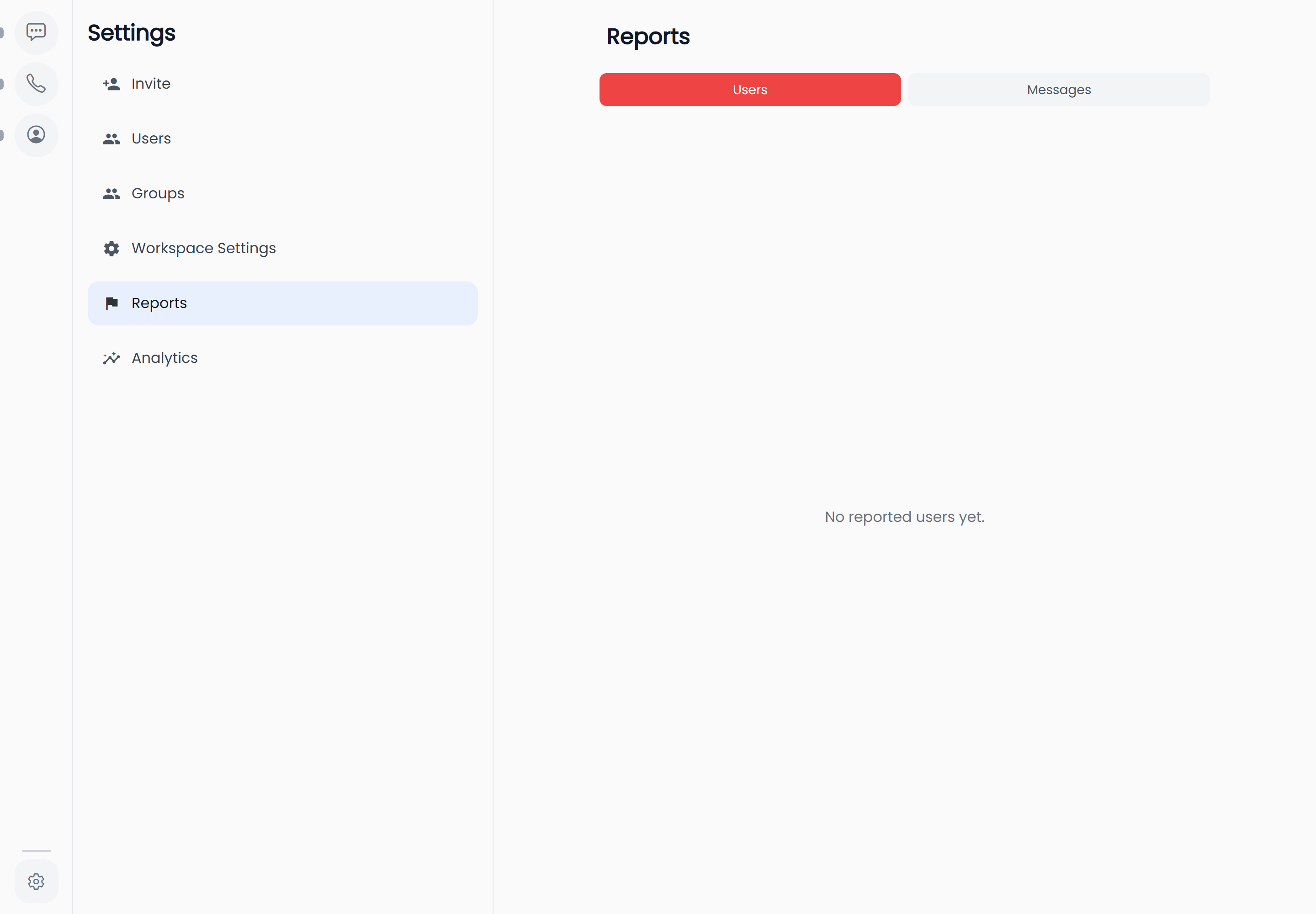
The screen is titled Reports and splits into two tabs, Users and Messages. It opens on Users. Each tab lists every report ever filed of that kind, newest first, loading more as you scroll. When there is nothing to show they read No reported users yet. and No reported messages yet.
A reported user
Each row carries the reported person's name — Unknown user if there is no name on the account — the reason as a red pill, any details the reporter wrote, and a footer reading "Reported by {name} · {date}". A reporter with no name shows as Unknown.
The pill shows the stored reason rather than the friendly wording the reporter chose, so Hate Speech is listed as HATE SPEECH and Threats or Violence as THREATS OR VIOLENCE.
A reported message
Each row carries the message's author, a Deleted pill if the message has already gone, the reason pill, and the reported content itself — up to four lines of text, or a preview and the file name if it was an attachment, or "[no text content]" if it was neither. Anything the reporter typed appears beneath as "Note: …", and the same "Reported by {name} · {date}" footer closes the row.
The text you see is a snapshot taken when the report was filed, so editing or unsending the message afterwards does not change the evidence.
Reports cover every conversation type. If somebody reports a message from a one-to-one chat, its content is shown here. That is the only administrator view of a direct message — you still cannot open or browse the conversation it came from.
Acting on a report
Two actions are available, one per tab.
Suspend a user
On the Users tab, select Suspend on the row.
"Are you sure you want to suspend {name}? They will lose access to the workspace."
Confirm with Suspend and it is done — User suspended, or Couldn't suspend user if it fails. Suspension is reversible and does not delete anything; see Company setup, end to end for exactly what a suspended person experiences. You cannot suspend yourself, and the button is greyed out on your own rows.
Reports rows show no account status, and the control acts as a toggle. Pressing Suspend on somebody who is already suspended puts them back in. Check the person's Account Status under Users if you are not sure, and un-suspend from there rather than from here.
Delete a message
On the Messages tab, select Delete on the row.
"This message will be removed for everyone in the conversation. This can't be undone."
Confirm with Delete and it is confirmed with Message deleted; a failure reads Couldn't delete message. Everyone in that conversation then sees "This message was deleted by workspace admin {your name}" in its place — your name is attached to the removal. Once done, the row grows a Deleted pill and its button reads Deleted and stops responding.
There is no way to dismiss, close, resolve or reply to a report — the list only ever grows, and a report you have already acted on stays in it looking much like a new one. There is also no filter, search or sort. Work newest-first from the top of each tab.