Search
HushChat has two kinds of search. The box above the conversation list searches everything — people, conversations and messages. The search inside an open conversation searches only that conversation.
Search everything
The search box sits directly above the conversation list, and prompts you with Search....
- Select the search box. Before you type anything, it already lists the people in your workspace.
- Start typing. Results appear a moment after you stop — HushChat waits until you pause rather than
searching on every keystroke, and shows
Searching...while it works. - Select a result to open it.
- Select the round ✕ at the right of the box to clear what you typed.
Before you type, the box explains itself with "Start typing to search conversations, messages, and users". When nothing matches, it tells you so: No conversations, messages or users found for your search term.
The search box only appears while the All filter is selected above the conversation list. If search has gone missing, you are on another filter — pick All to bring it back.
What comes back
Results arrive in up to three groups, in this order, with a heading above each:
| Group | What it lists | What selecting one does |
|---|---|---|
| Users | People in the workspace whose name matches | Opens your existing chat with them, or starts a new one |
| Chats | Conversations whose name matches | Opens that conversation |
| Messages | Messages whose text matches, under the conversation they were sent in | Opens the conversation at that message |
Each group holds up to 25 results, so a very broad search shows you the strongest matches rather than everything. Narrow the term to see more of what you want.
Search people by their first or last name. Typing several words narrows the search — every word has to match. HushChat never displays anyone's email address, so a name is what you have to work with.
If the person you pick has been suspended, HushChat tells you rather than opening a dead end: "This user is suspended — you can't start a new conversation." You can still read your existing history with them.
Search inside one conversation
When you know roughly where something was said, search the conversation instead of the whole workspace.
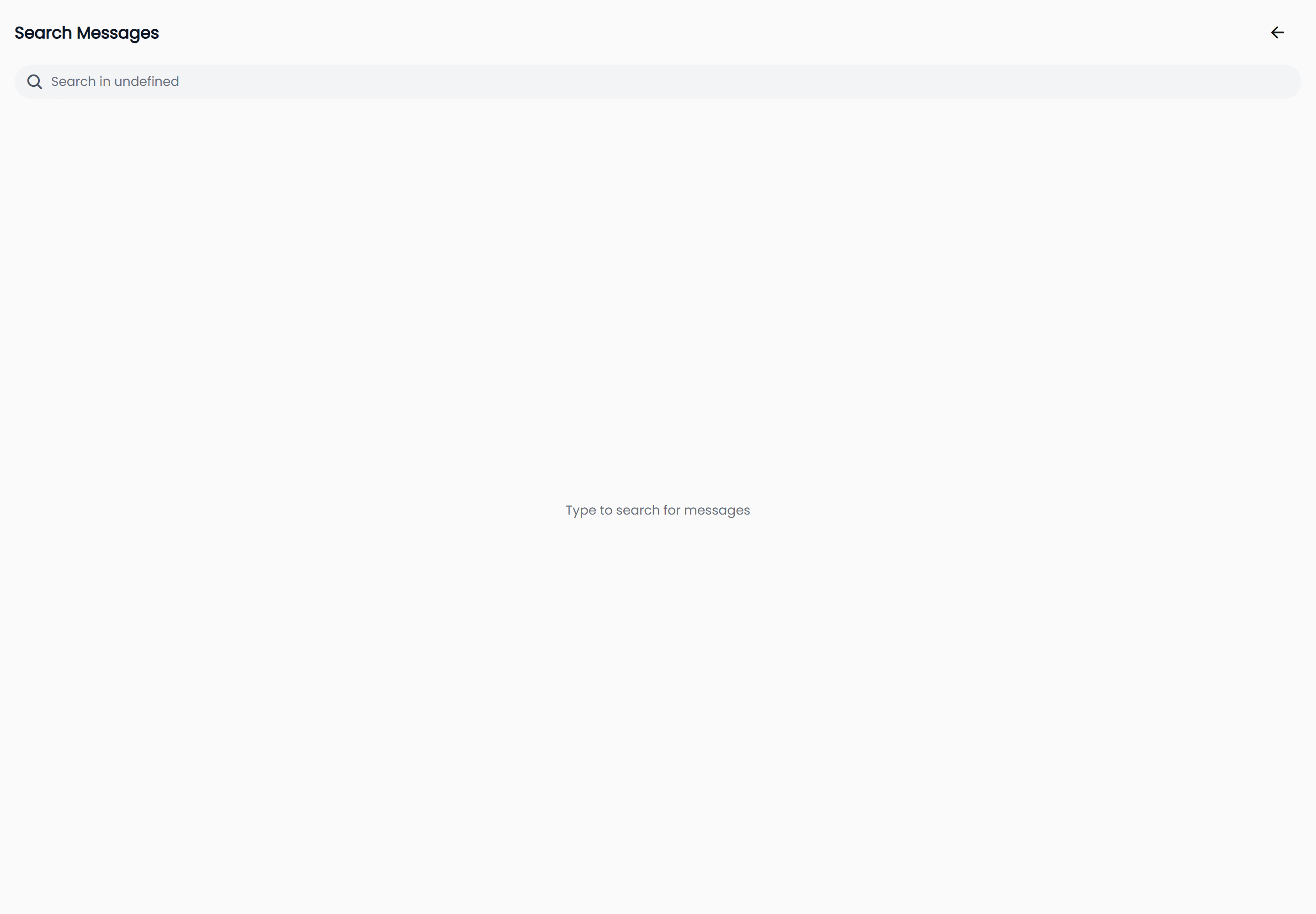
Web — open the conversation and select the magnifying glass in the conversation header. A panel
titled Search Messages opens on the right, with a box prompting Search in followed by the
conversation's name.
iOS and Android — open the conversation, tap its name at the top to open the conversation
information, then tap the round magnifying glass button. The search screen prompts you with
Search messages... and offers Cancel to go back.
The behaviour is the same on both:
- Type what you are looking for. The screen shows
Typing...while you are still going, thenSearching...while it looks. - Read the results. Each row shows who sent it —
From: Youfor your own messages, otherwiseFrom:and the sender's name — the matching words highlighted in yellow, and when it was sent. - Select a row to jump to that message in the conversation.
Until you type, the screen invites you with "Type to search for messages". When nothing matches it reads No messages found for your search term. If something goes wrong it shows Error loading results with a Retry you can select.
Jumping to a result
Selecting a message result — from either search — opens the conversation scrolled to that exact message, rather than dropping you at the bottom of the chat.
The message you jumped to is briefly washed in a highlight colour so your eye lands on it, then the highlight fades away on its own after a couple of seconds. Nothing is left marked afterwards, and nobody else sees that you jumped to it.
On the web the conversation opens in the right-hand pane with the left pane still showing your results, so you can work through several matches in a row.
Keyboard
On the web, Ctrl / ⌘ + K puts the cursor straight into the search box from anywhere in the app —
it switches to the All filter first if you were on another one. Esc steps back out of search
again. See Keyboard shortcuts for the full list.