Get help
Help & contact in your profile opens a short form for writing to the HushChat team — a question, a bug, or a piece of feedback. It goes to the people who make HushChat, not to your workspace administrators.
Open the form
- Open your profile — Profile in the sidebar on the web, or the Profile tab on iOS and Android.
- Select Help & contact.
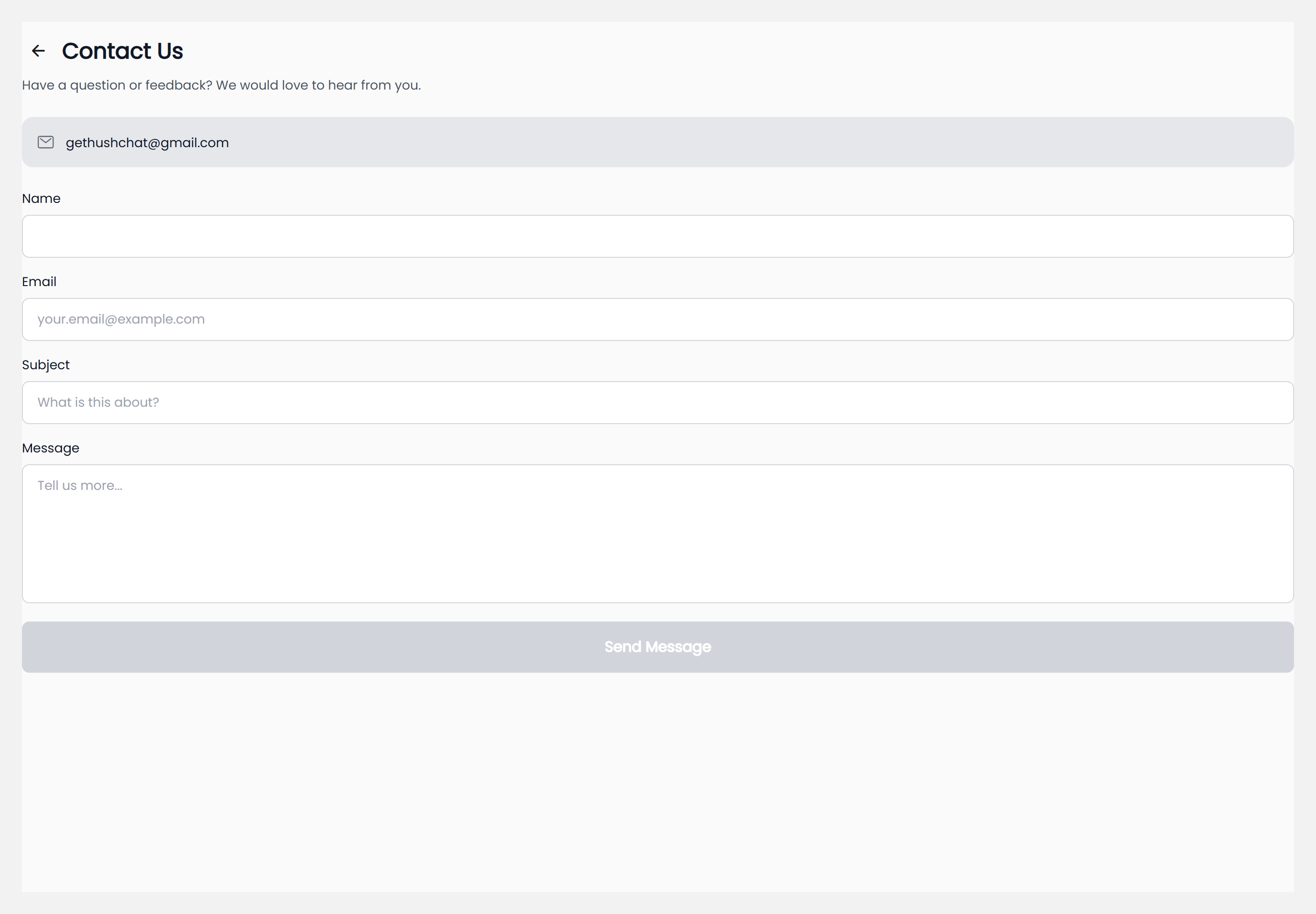
The screen is titled Contact Us and opens with the line "Have a question or feedback? We would love to hear from you."
Directly underneath, a panel shows the support address you can write to directly if you would rather
use your own mail app: [email protected].
Fill in the form
Four fields, all required:
| Field | Prompt | Notes |
|---|---|---|
| Name | Your name | Filled in with your name already |
[email protected] | Filled in with your own address already | |
| Subject | What is this about? | One line — what the message is about |
| Message | Tell us more... | Grows to several lines as you type |
Name and Email arrive pre-filled from your account, so most of the time you only have to write a subject and a message. You can overwrite either of them — for example, to be reached at a different address than the one you signed in with.
This is the one place in HushChat where you type an email address into a form. It is the reply address for this message and nothing else: it is not shown to anyone in your workspace, and changing it here does not change the address you sign in with.
Send it
- Check the four fields.
- Select Send Message.
Send Message stays greyed out until all four fields have something in them, so a half-filled form cannot be sent by accident. While the message is on its way, every field is locked and the button shows a spinner.
If a field is empty or an address is malformed when you submit, the problem is called out in red directly under the field it belongs to:
| Problem | What you see |
|---|---|
| No name | Name is required |
| No address | Email is required |
| Address is not a valid one | Invalid email |
| No subject | Subject is required |
| No message | Message is required |
On success you get the confirmation "Your message has been sent. We will get back to you soon!" and the form resets — including the subject and message you just wrote, so it is ready for a fresh one.
If the message could not be sent, HushChat tells you it "Couldn't send your message" and asks you to try again. Your text stays in the form, so you can retry without rewriting it. If it keeps failing, check your connection, or write to the support address shown at the top of the screen.
What to include
The form gives you a plain message box and nothing else — no screenshots and no automatic diagnostic report. That means the detail has to come from you. A message that gets answered quickly usually says:
- What you were trying to do.
- What happened instead, in the app's own words if there was an error.
- Where — web, iOS, or Android.
- Roughly when it happened.
Keep one subject to one message. Two unrelated problems in a single message are harder to answer than two short messages.
When to ask your workspace administrator instead
Some things are not the HushChat team's to change — they are set by whoever runs your workspace. Ask an administrator, not this form, if you need someone invited or removed, a role changed, a bigger upload allowance, or a workspace-wide setting such as calling or conversation deletion turned on or off.