Start a conversation
You do not create contacts in HushChat. Everyone in your workspace is already reachable — you find them by searching, and the conversation is created the moment you select them.
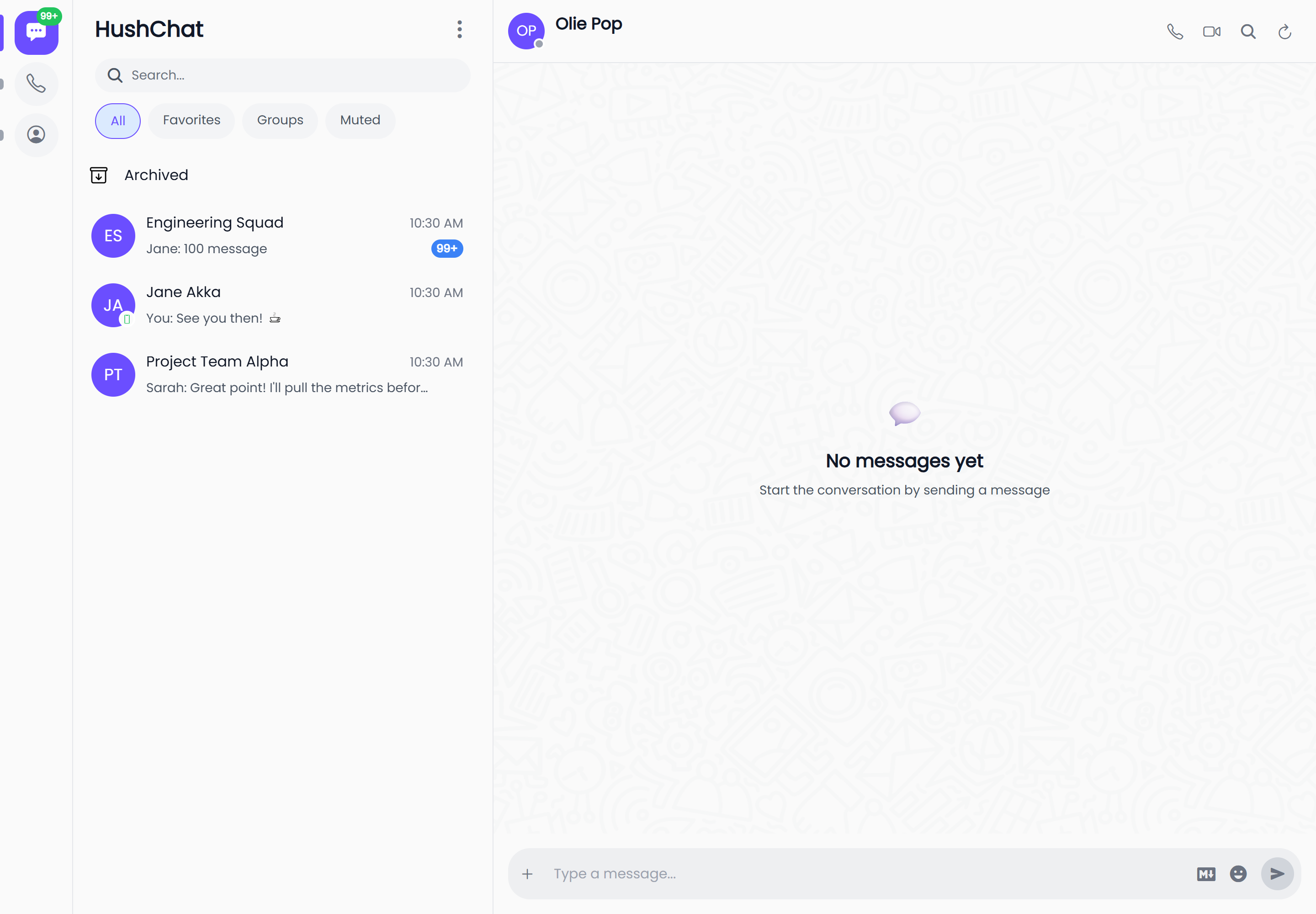
Search for a person
- Open the conversation list and make sure the All filter is selected — the search bar only appears there.
- Select the search box. It prompts you with
Search.... - Type a name.
- Select the person you want under the Users heading.
If you already have a private chat with that person, HushChat opens it. If you do not, it creates one and opens it straight away.
The server does match an email address behind the scenes, but results never display one, so an email you type gives you a row you cannot recognise. Type the person's first or last name instead.
Two things to expect in the results list:
- A person whose display name is missing appears as Unknown User.
- A person whose account has been suspended carries a red Suspended badge.
Selecting a suspended person tells you
This user is suspended — you can't start a new conversation. and nothing is created. If you already
had a chat with them before they were suspended, that chat still opens.
What search returns
Results arrive under up to three headings, in this order:
| Heading | What it lists |
|---|---|
| Users | People in the workspace. Selecting one opens or starts a private chat. |
| Chats | Conversations whose name matches. Selecting one opens it. |
| Messages | Individual messages whose text matches. Selecting one opens the conversation at that message. |
While the search box is focused but still empty, HushChat shows a ready-made list of workspace people so you can pick someone without typing anything.
Along the way you may see:
Searching...while results are being fetched.Start typing to search conversations, messages, and usersbefore you have typed anything.No conversations, messages or users found for "..."when nothing matches what you typed.
Search waits about half a second after you stop typing before it runs, so the list settles rather than flickering on every keystroke.
Start a group
A group is created from a list of participants rather than from search.
Web — open the menu at the top of the conversation list and choose New Group.
iOS and Android — open the menu at the top of the conversation list and choose New group.
From there:
- Tick the people you want. There is also an Add all workspace users option that takes in the whole workspace at once.
- Select Continue.
- On the Group Details step, give the group its name and finish creating it.
See the Groups section for what you can do once the group exists.
The first thing you see in a new chat
A conversation with nothing in it yet shows:
No messages yet
Start the conversation by sending a message
Type in the composer at the bottom and send — see Send a message.
Opening a chat from a link
A HushChat conversation address carries the conversation's id, so a link pasted into a browser, or a notification you tap, lands you in the right chat.
On the web the conversation opens in the reading pane beside the list. On iOS and Android it opens as its own screen with a back arrow.
If the conversation is not in the part of the list already loaded, HushChat still opens it by id rather than telling you it cannot be found.
Keyboard shortcuts
On the web:
| Shortcut | Action |
|---|---|
Ctrl/⌘ + K | Focus search |
Ctrl/⌘ + N | New conversation — opens the group creation panel |
Esc | Close the panel you have open, or leave the search box |
Keyboard shortcuts are a web feature. On iOS and Android, use the on-screen controls instead.
Ctrl/⌘ + K also switches you back to the All filter on its way to the search box, so the
search bar is there when the cursor arrives.