The users list
Users is the directory you manage people from. Everything on the next three pages — changing a role, setting an upload limit, suspending, removing, resetting a password — starts by finding the person here.
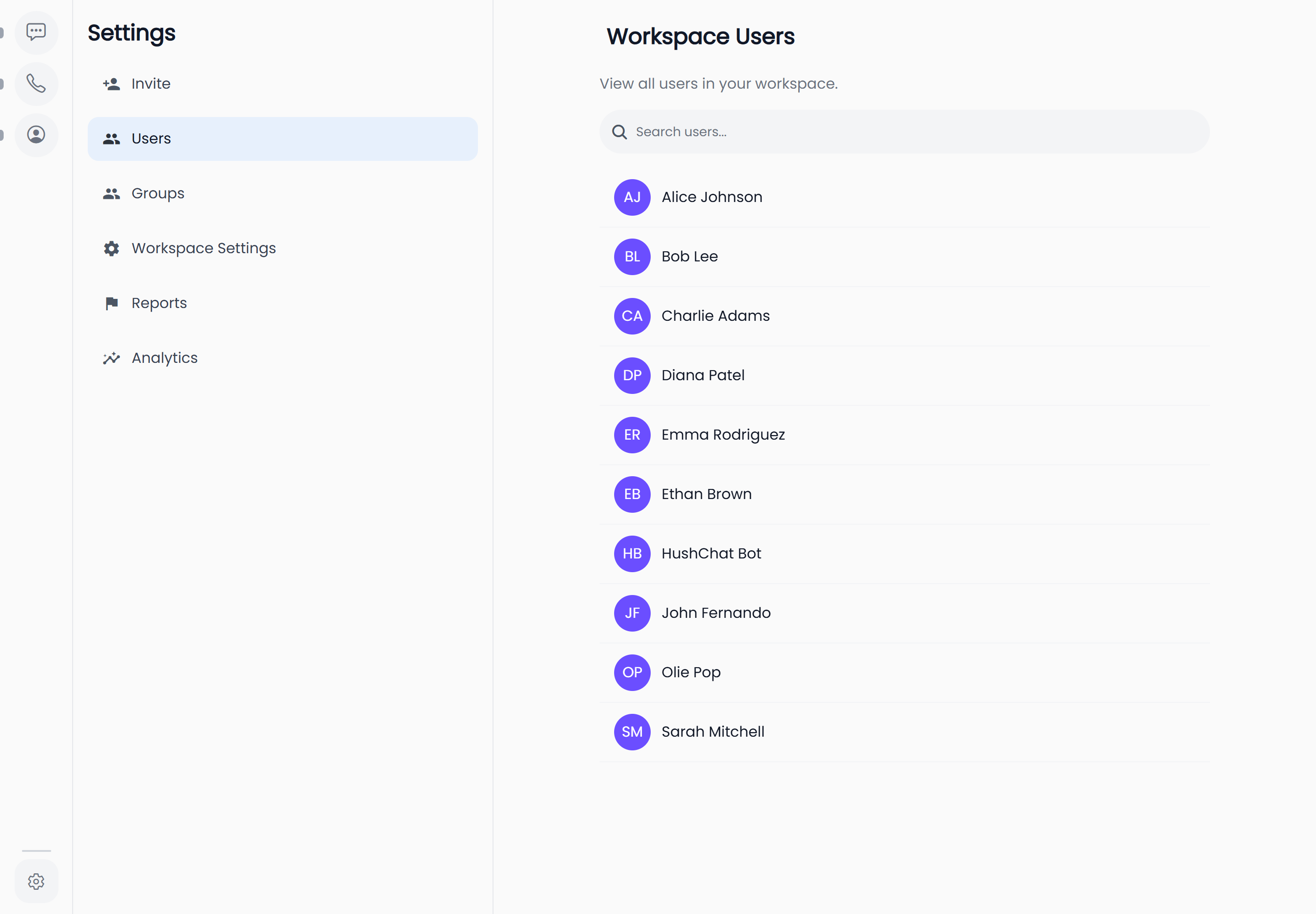
Where to find it
| Platform | How to get there |
|---|---|
| Web | Open Settings from the sidebar, then Users |
| iOS and Android | Open the Admin tab, then Users |
The screen is titled Workspace Users, and described underneath as "View all users in your workspace."
Users is available to workspace administrators only. If you are not an administrator, the screen is not shown to you and the menu entry does not appear.
What a row shows
Each row is a person: their profile picture (or their initials, if they have not set one) and their full name. Nothing else — no role, no status, no address.
If a person has no name on file, the row reads Unknown User. That is a genuine account with a blank name, not an error, and you can open it like any other.
HushChat never sends a member's email address to the app, so no administrator screen displays one. People are identified by name throughout, and Unknown User is what a nameless account falls back to.
Find someone
- Select the search box at the top of the list. It is labelled "Search users...".
- Type part of a name. The list updates a moment after you stop typing, not on every keystroke.
- Every word you type has to match. Typing two words finds people whose name matches both — so a first name plus a surname narrows the list, and a typo in either empties it.
- Clear the box to get the whole list back.
When nothing matches, the screen says No users found. If the list cannot be loaded at all — an interrupted connection, most often — you get an error banner instead, reading Failed to load users. Try the screen again once you are back online.
Scrolling the whole workspace
The list loads a batch at a time and fetches the next batch as you scroll to the bottom, with a brief spinner while it does. In a large workspace, searching is much faster than scrolling.
Who is not in the list
Three kinds of people are missing from Workspace Users, and all three surprise administrators at some point:
| Missing | Why |
|---|---|
| You | Your own account is filtered out. You will never find yourself here. |
| Suspended people | Once suspended, a person drops out of this list. See Suspend and remove users. |
| Removed people | Removal takes them out of the workspace entirely. |
Because a suspended person leaves this list, the Unsuspend button is not reachable by searching for them afterwards. Unsuspend from the panel you are already on, at the moment you suspend — the detail on Suspend and remove users explains the ways back.
Open a person
Select any row. The list is replaced by that person's Edit User panel, and the back arrow at the top left returns you to the list with your search still in place.
On the web the panel swaps in place — the address in your browser stays on the Users screen and does not change to a per-person address. That means there is no link to an individual person: you cannot bookmark someone, send a colleague a link to their panel, or use the browser's Back button to leave it. Use the back arrow inside the screen instead.
On iOS and Android the same swap happens inside the Users screen, and the device back gesture behaves the same way as the arrow.
What you can do from here
Opening a person gives you, in order down the panel: their name and username, their Role, their assigned agents (in a Customer-mode workspace), their Account Status, their Upload Quota, their IP rules, a password reset, and the Danger Zone. Each is covered on the pages that follow:
- Edit a user — name, role, agents, upload quota and IP rules.
- Suspend and remove users — the two ways to take access away, and the difference between them.
- Reset a user password — generating a password and handing it over.