Send a message
Every conversation has a composer along the bottom of the screen. Select it, type, and send.
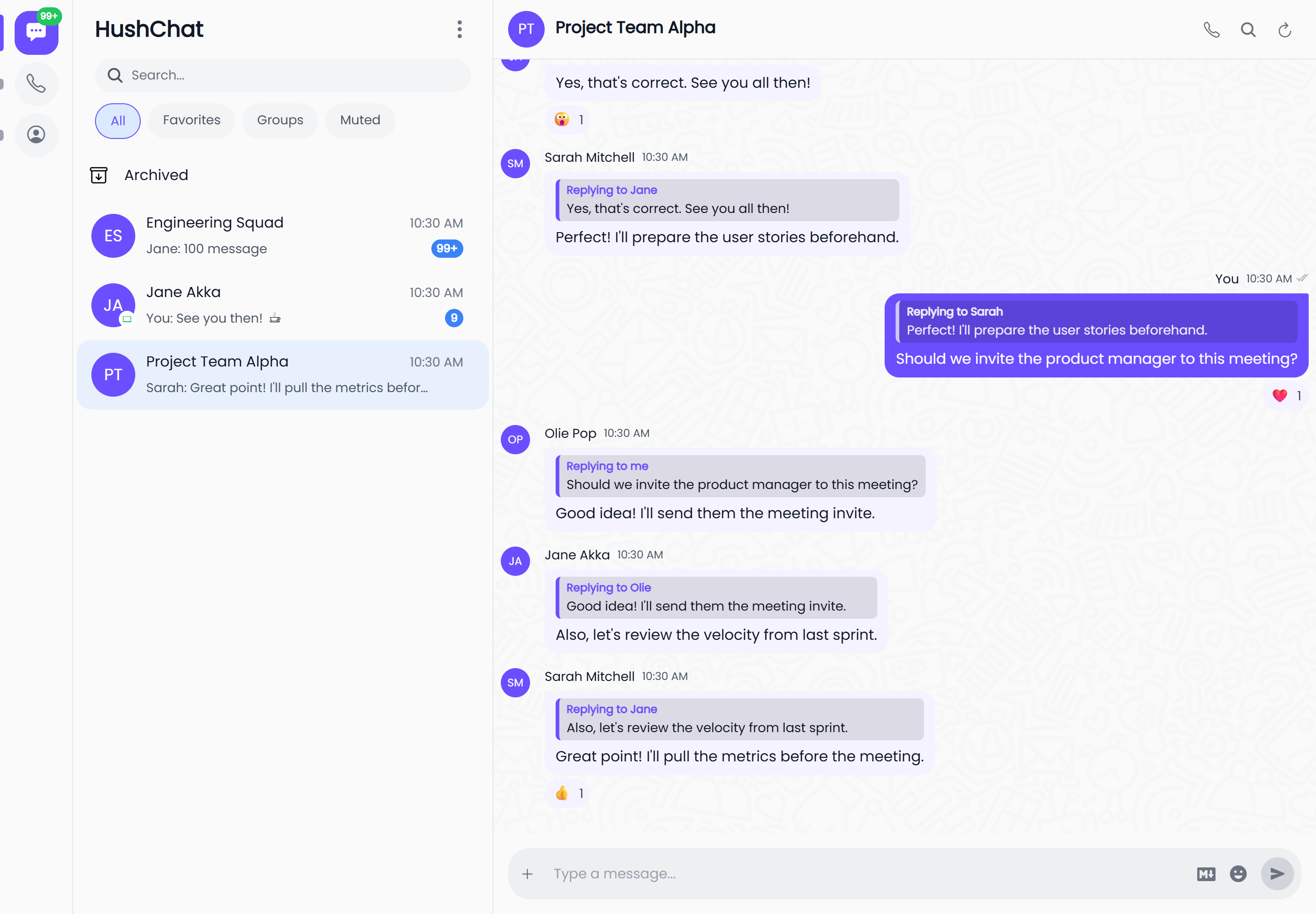
Send a message
- Open a conversation from Conversations.
- Select the composer — it prompts you with
Type a message.... - Type your message.
- Press Enter, or select the send button.
Enter sends the message. Shift + Enter starts a new line instead of sending, so you can write several paragraphs in one message without sending each line separately.
The composer grows as you type. For a long message, open the full-screen editor so you can see the whole thing at once while you write.
What happens after you send
Your message appears immediately at the bottom of the conversation, and the other people in it receive it straight away — HushChat does not wait for a refresh. Each message carries a delivery indicator so you can tell the difference between sent and seen.
If you are catching up on a conversation, a divider marks where your unread messages begin, so you can start reading from the first thing you missed rather than scrolling back yourself.
When you cannot type
The composer is sometimes replaced by a short explanation instead of an input box. The most common reasons are:
- The group is restricted to administrators. A group administrator has turned on the setting that only lets administrators send messages. You can still read everything.
- You have blocked the other person, or they have blocked you. Unblock them from the conversation or from Blocked contacts in your profile.
Formatting, replies, and attachments
Sending plain text is only the start:
- Turn on Markdown to use bold, italic, lists, and code blocks — see Formatting and Markdown.
- Reply to a specific message so your answer quotes it, and use
@to mention someone — see Replies and mentions. - Attach photos, videos, documents and GIFs, or run a poll — see the Sharing files and polls section.
Keyboard shortcuts
On the web, a few shortcuts save a trip to the mouse:
| Shortcut | Action |
|---|---|
Ctrl/⌘ + K | Focus search |
Ctrl/⌘ + N | New conversation |
Ctrl/⌘ + Shift + M | Toggle mentioned messages |
Keyboard shortcuts are a web feature. On iOS and Android, use the on-screen controls instead.