Create your account
Getting started is three short forms: create the account, confirm your email address with a 6-digit code, then fill in the name and username you will be known by inside a workspace.
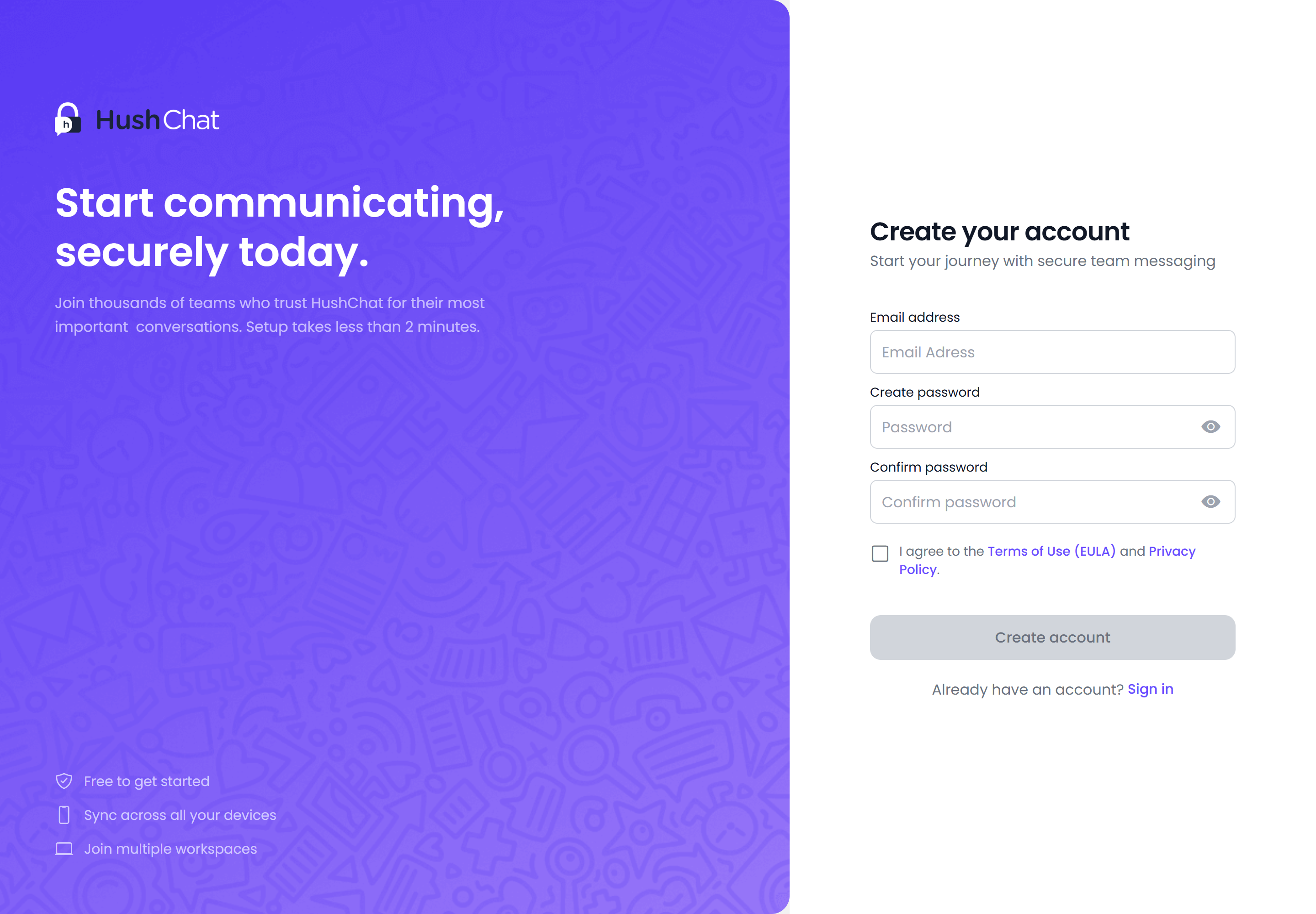
Create the account
Open the sign-in screen and select Create one, or go straight to the registration screen. It is headed Create your account, with the line "Start your journey with secure team messaging".
- Type your address in Email address.
- Type a password in Create password.
- Repeat it in Confirm password.
- Tick the consent box — "I agree to the Terms of Use (EULA) and Privacy Policy." Both are links, so you can read them first; tapping a link opens it rather than ticking the box.
- Select Create account. While it works the button reads Creating account....
Create account stays disabled until the consent box is ticked. If nothing happens when you press it, check the tick.
At the bottom of the screen, "Already have an account?" offers a Sign in link back to the sign-in form.
Password requirements
HushChat checks your password against five rules, listed on screen under Password Requirements: when you set a password from your profile:
- At least 6 characters
- At least one uppercase letter
- At least one lowercase letter
- At least one number
- At least one special character
The registration form itself insists on the length, an uppercase letter and a special character, and
tells you which one is missing — for example Password must contain at least one uppercase letter.
Choose a password that satisfies all five rules and it will be accepted everywhere in HushChat,
including when you change it later.
If the two fields do not agree you get Passwords must match.
Verify your email address
After you create the account, HushChat sends a code and opens the screen headed Check your email: "We've sent a 6-digit verification code to your email".
- Type the code into the field prompting you with
OTP. It takes digits only. - Select Verify and Continue. While it checks, the button reads Verifying....
If the code does not arrive, "Didn't receive the code?" has a Resend link — HushChat confirms with "Verification code sent successfully!". If you mistyped your address, "Wrong email?" has a Go back link (there is also a Back link at the top) that returns you to registration so you can start again with the right address.
| Message | Meaning |
|---|---|
Please enter the OTP | The field was empty |
OTP should contain only numbers | The code contains something other than digits |
Once the code is accepted you are returned to the sign-in screen. Sign in with the address and password you just chose.
Fill in your workspace profile
The first time you enter a workspace you have been added to, HushChat shows a short form headed Register: "Create your account to get started."
- Fill in First Name and Last Name — these are the name colleagues see.
- Choose a Username.
- Select Register. While it saves, the button reads Registering....
A username may contain only letters, numbers and underscores. Anything else is rejected with "username must contain only letters, numbers, and underscores, no spaces or other special characters".
When the form is accepted, your conversations open and you are in.
An account on its own is not a seat in a workspace. Somebody who administers the workspace adds you to it; until they have, the workspace picker at sign-in has nothing for you to choose. If you are setting up a workspace yourself rather than joining one, see Choose or switch workspace.