Reset your password
If you cannot get past the sign-in screen, HushChat can email you a verification code and let you set a new password yourself. It takes two screens: ask for the code, then use it.
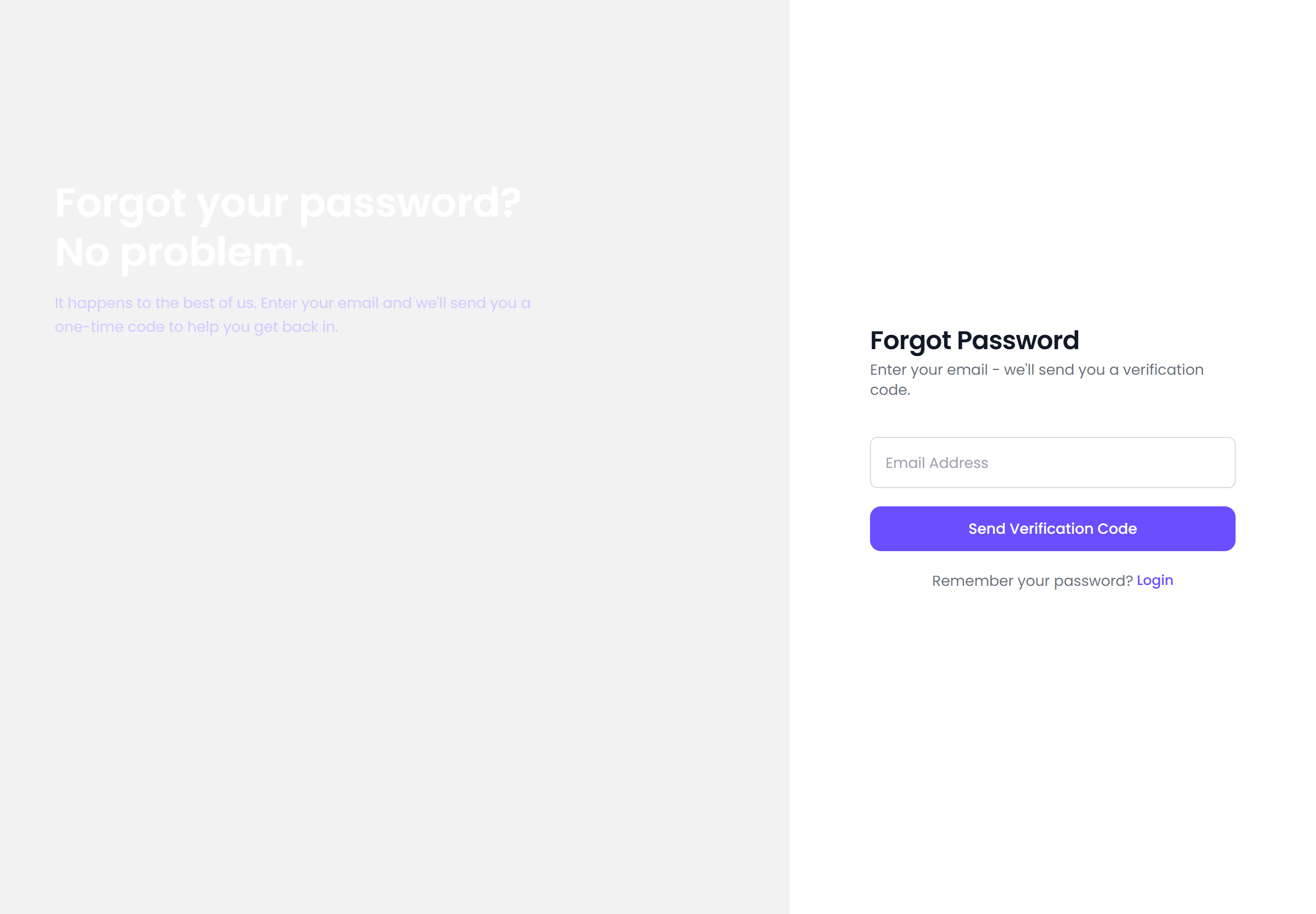
Ask for a code
- On the sign-in screen, select Forgot password?.
- The screen headed Forgot Password appears — "Enter your email - we'll send you a verification code."
- Type your address in the field prompting you with
Email Address. - Select Send Verification Code.
On success HushChat shows "Verification code sent! Check your email." and moves you on to the reset screen by itself a moment later, with your address already filled in. If you would rather go back, "Remember your password?" has a Login link.
| Message | Meaning |
|---|---|
Please enter your email address | The field was empty |
Please enter a valid email address | What you typed is not an address |
| "Failed to send verification code" | The request did not reach the server — try again |
Set the new password
The second screen is headed Reset Password: "Enter the code sent to your email and set a new password." When you arrive from the previous step it greets you with "Reset code has been sent to your email!"
- Check the Email Address field — it is already filled in if you came from the previous screen.
- Type the code from the email into Verification Code.
- Type your new password into New Password.
- Repeat it in Confirm New Password.
- Select Reset Password.
When it succeeds you are returned to the sign-in screen. Sign in with the new password.
| Message | Meaning |
|---|---|
Verification code is required | The code field was empty |
Min 6 characters | The new password is too short |
Passwords do not match | The two password fields differ |
| "Failed to reset password" | The server rejected the request — the most common cause is a mistyped or stale code |
If the code no longer works, go back to Forgot Password and select Send Verification Code again to get a fresh one.
Choosing a password that will be accepted
HushChat's password rules are:
- At least 6 characters
- At least one uppercase letter
- At least one lowercase letter
- At least one number
- At least one special character
The reset form checks the length and that your two entries match. Satisfying all five rules keeps the same password usable when you later change it from your profile, where every rule is enforced and shown as a checklist.
When an administrator resets it for you
A workspace administrator can generate a password for you instead. In a person's record under Users there is a Password section — "Generate a new password for this user. Shown once." — with a Reset Password button.
What happens from your side:
- The administrator confirms the reset. HushChat warns them that "Their current password stops working immediately."
- HushChat generates a password and shows it to the administrator once, under the heading New Password with the note "Share this password with the user securely. It will not be shown again."
- They pass it to you, and you sign in with it.
Your old password stops working the moment the administrator does this, even if you never receive the new one. If that happens, ask them to run Reset Password again — the generated password cannot be shown a second time.
A password somebody else generated is known to somebody else. Change it as soon as you are in, from Profile.